Monitor Bottleneck Guide: Is Your Display Limiting Your Gaming Rig?
Is Your Monitor Bottlenecking Your Gaming Rig? Diagnosis & Fix Guide
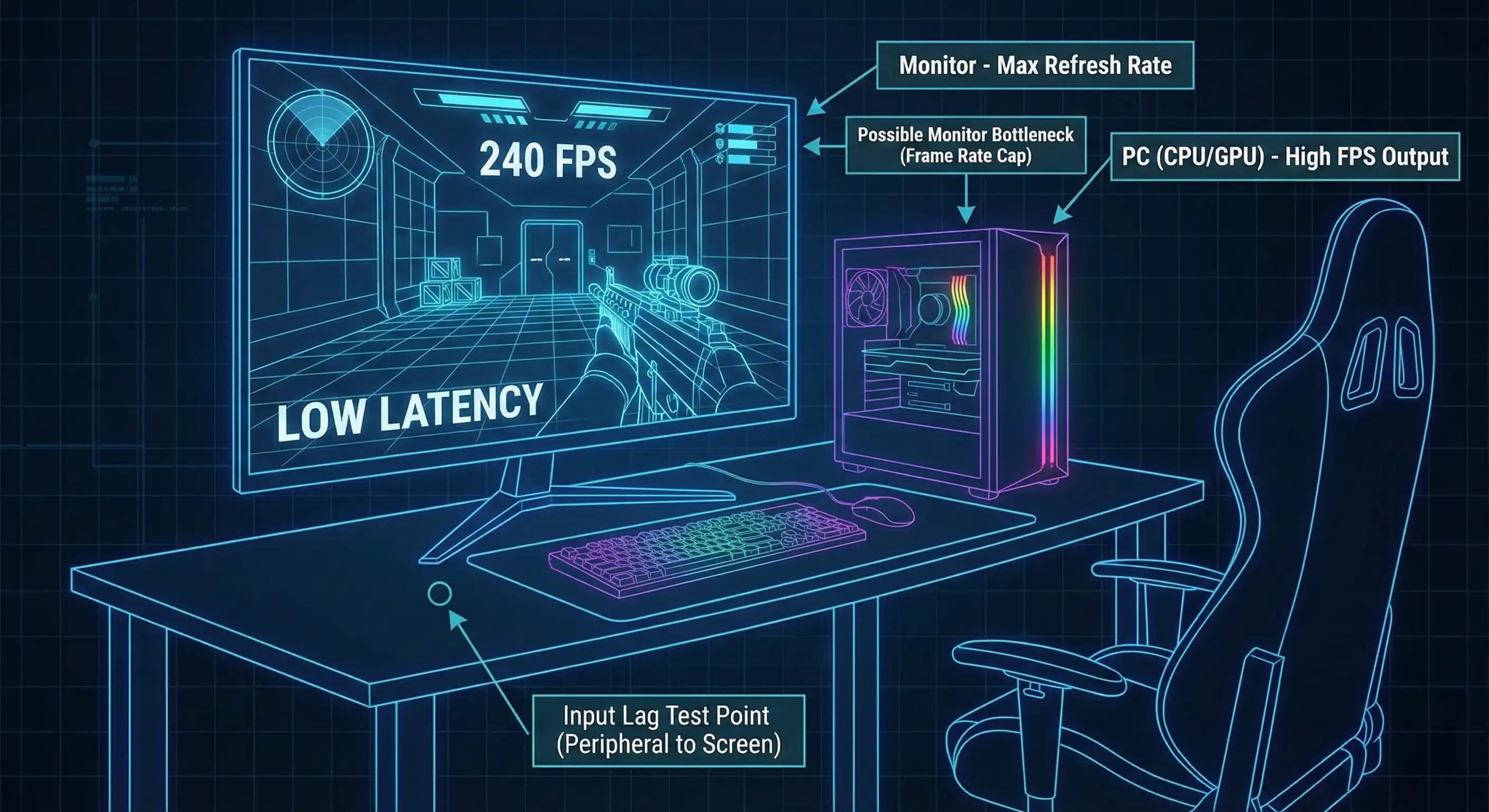
So, you just dropped a small fortune on an RTX 40-series GPU and a top-tier CPU. Your frame rate counter is screaming 200+ FPS in Call of Duty or Valorant. But when you move your mouse, something feels wrong. The game feels... "sticky." The motion isn't fluid. Your aim is slightly off.
You are likely dealing with a monitor bottleneck.
It is the silent killer of PC performance. Most gamers obsess over the relationship between their processor and graphics card, yet they completely ignore the final step in the pipeline: the display.
Here is the cold truth: If your screen cannot process frames as fast as your GPU spits them out, or if the input latency is high, that expensive hardware is wasted. A monitor bottleneck occurs when your display becomes the limiting factor in your system's performance loop.
We are going to break down the science of display bottlenecks, help you diagnose your system with our BottleneckChecker tool, and give you real fixes—from simple software tweaks to cable upgrades.
Introduction: The "Silent Killer" of PC Performance
Think of it like buying a Ferrari but driving it on tires rated for a maximum speed of 60 mph. It doesn't matter how powerful the engine is. Your performance is capped by the rubber meeting the road.
This is exactly what happens in a PC gaming setup. A monitor bottleneck happens when your display technology restricts your computer's output. This usually shows up in two specific ways:
-
The Hz Cap: Your GPU pushes 200 FPS, but your 60Hz monitor can only physically show 60 images per second.
-
The Latency Trap: Your system renders a frame in 4ms, but your monitor takes 30ms to process and show it. There is a disconnect between your hand and your eyes.
We aren't just talking about basic "FPS vs. Hz" comparisons here. We need to look at input lag, check if your HDMI cable is choking your bandwidth, and figure out if a monitor bottleneck is the reason you are losing competitive matches.
What is a Monitor Bottleneck? (The Hardware Pipeline)
To fix the problem, you need to understand how the pipeline works. It isn't just about raw power; it is about synchronization.
The CPU-GPU-Monitor Relationship
Picture your gaming rig as a digital assembly line. You have the CPU, which acts like the manager, telling the team what to draw. Then you have the GPU, the artist, actually rendering the image (the frame). Finally, there is the Monitor, the canvas that shows the final image to your eyes.
A monitor bottleneck happens when the flow stops at the very end of the line.
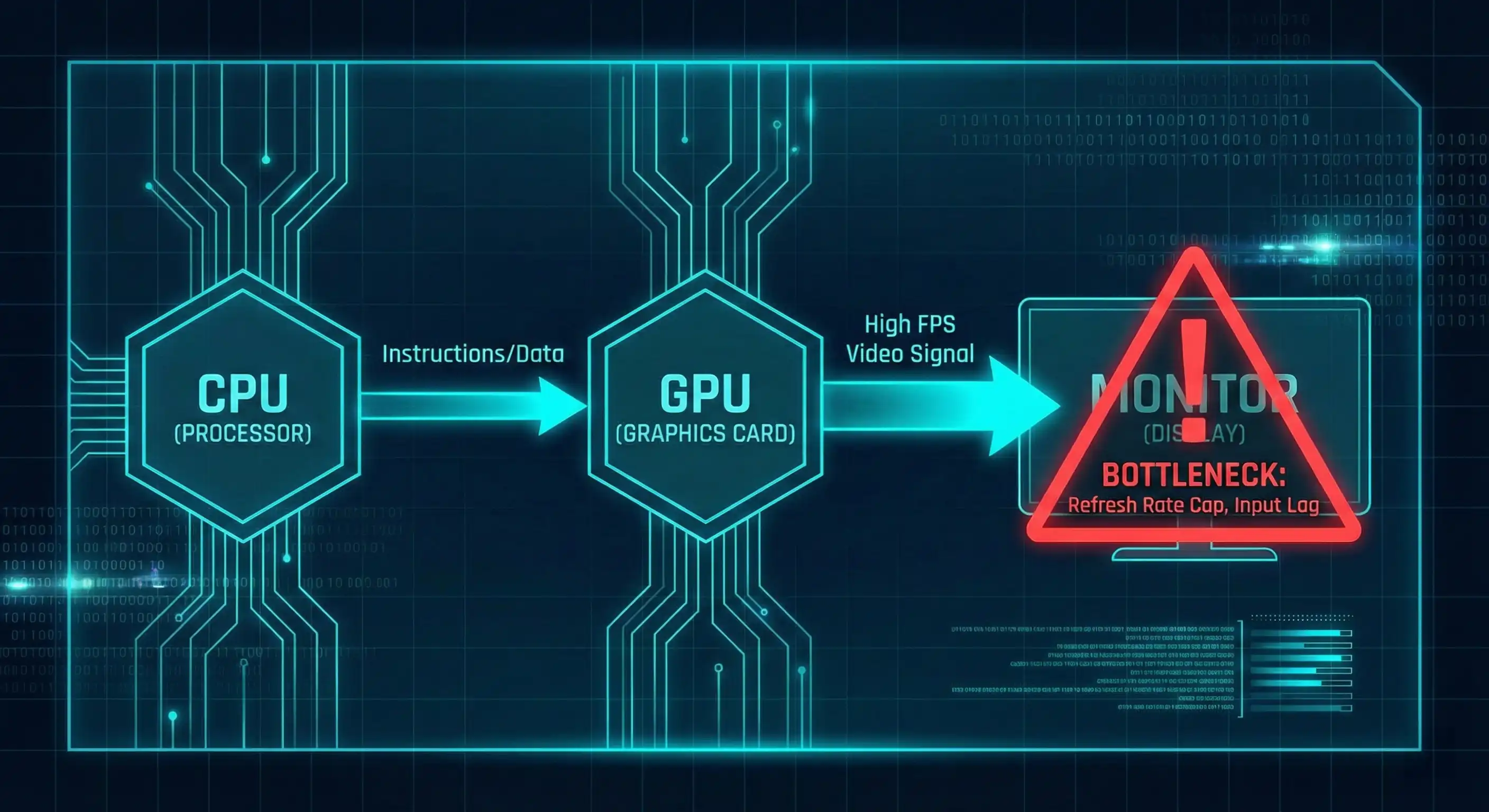
If you have an RTX 4080 pumping out frames at incredible speeds, but your display is an older 1080p 60Hz panel, you are hitting a hard Monitor Cap. You are rendering frames you will never see.
On the flip side, you have Visual Lag. Even if your refresh rate is decent, if the monitor's internal image processing is slow, your "twitch reactions" are delayed before they ever turn into light on the screen.
Input Lag vs. Response Time vs. Refresh Rate
Lots of gamers—and even some tech journalists—mix these terms up. To identify a monitor bottleneck, let's get them straight:
-
Refresh Rate (Hz): How many times per second the screen updates. Higher is smoother. 144Hz is pretty much the entry-level standard for gaming now.
-
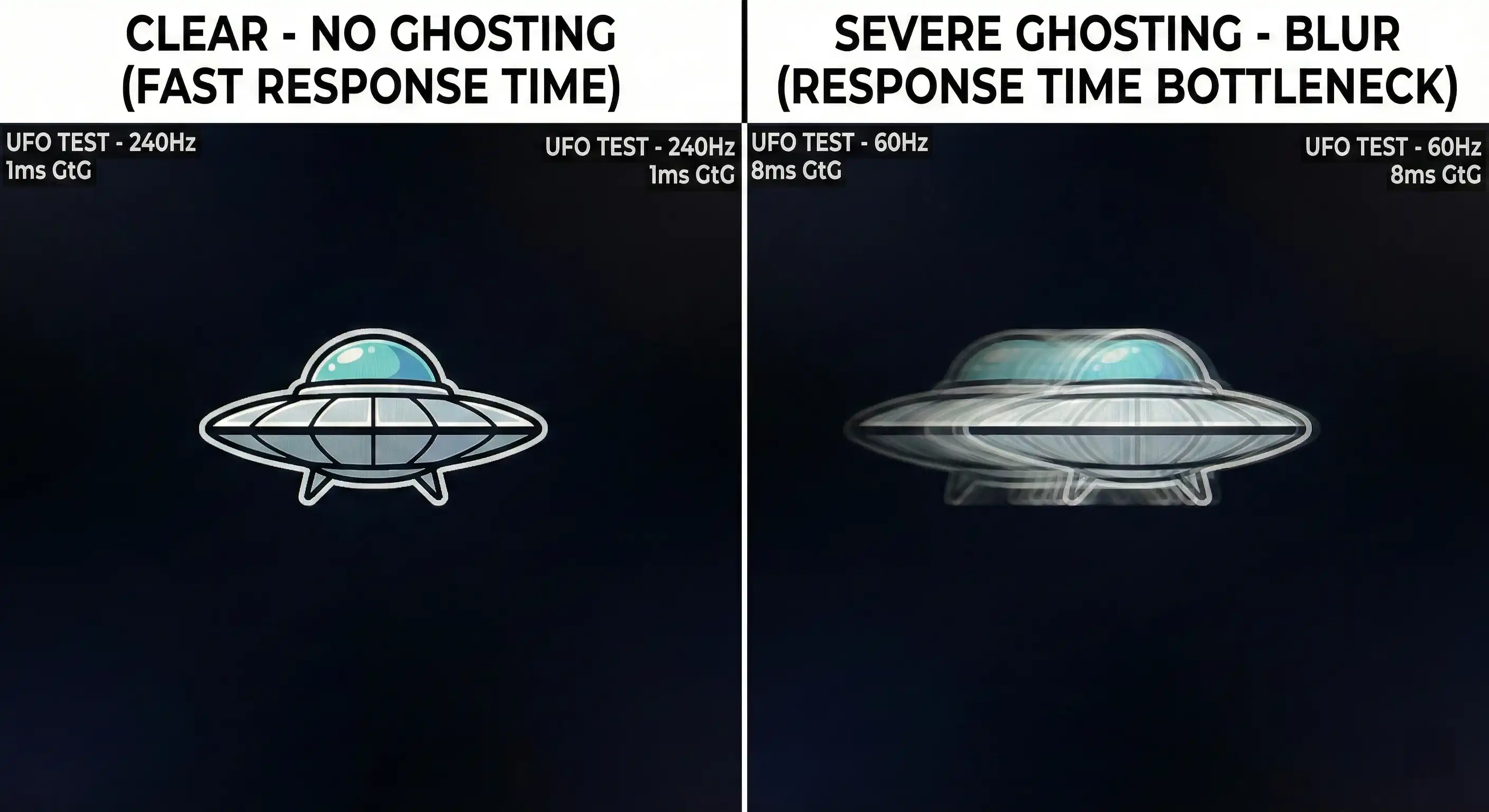
Response Time (GtG): How fast a pixel changes from gray to gray. Slow response times cause ghosting (that ugly trail behind moving objects). OLED panels are the kings here with near-instant 0.03ms times.
-
Input Lag (Latency): The time between your mouse click and the action appearing on screen. This is the metric that matters most.
According to testing standards from groups like RTINGS, a monitor with input lag under 10ms is considered "Elite" for competitive gaming. Anything over 60ms is noticeable.
If your lag is over 100ms, it feels like you are moving through mud. A mere 5ms advantage in input lag can statistically improve your odds of winning a gunfight, proving that a monitor bottleneck can directly impact your rank.
Signs Your Monitor Is the Weakest Link
You do not need expensive lab equipment to know if a monitor bottleneck is the culprit. Just look for these symptoms.
Visual Artifacts & Tearing
Screen Tearing is the most obvious sign. It happens when your GPU sends a new frame while the monitor is still in the middle of drawing the previous one. It looks like someone sliced the image horizontally.
V-Sync can fix this, sure. But it adds a ton of input lag (we will get to that). If you see constant tearing, your GPU is vastly outperforming your monitor's ability to keep up, creating a visual monitor bottleneck.
The "High FPS, Low Smoothness" Paradox
Do you see 144 FPS on your counter, but the game feels like 50 FPS? That is usually a Frame Pacing issue or a refresh rate mismatch.
Common mistake: Your monitor is capable of 144Hz, but Windows is set to 60Hz. Your GPU might be rendering 200 frames, but the monitor is throwing away 140 of them. This creates micro-stutters because the frames aren't hitting the screen at consistent intervals. The result? A "jittery" experience, confirming a configuration-based monitor bottleneck.
How to Check for Monitor Bottlenecks (3 Methods)
Stop guessing about your hardware. Let's look at the numbers to confirm the bottleneck.
Method 1: The Visual Test (UFO Test)
The quickest way to check for ghosting and motion blur is the "UFO Test" by Blurbusters. Go to their site in your browser and watch the moving UFOs.
Does the UFO look like a smear? If so, your monitor's Response Time is killing your visual clarity. If it looks like a crisp object, you are in good shape. Check the UFO Test here.
Method 2: The Calculation Method (Using BottleneckChecker)
Most bottleneck calculators only look at the CPU and GPU. That is a huge flaw. A balanced CPU/GPU combo is useless if the monitor cannot display the output.
Use our BottleneckChecker to look at the full picture. You will input your CPU and GPU (like a Core i9-13900K + RTX 4070 Ti), then add your Monitor Specs. The tool calculates if your screen is creating a monitor bottleneck.
For example, a user running an RTX 4080 with a 1080p 60Hz monitor will trigger a "Severe Monitor Bottleneck" warning. The tool effectively shows that 60-70% of the GPU's potential is going down the drain because the monitor physically cannot keep up.
Method 3: Analyzing OSD Metrics
Use software like MSI Afterburner or NVIDIA's overlay. Enable Frametime (not just FPS).
Watch the line. If your Frametime graph is flat and low (say, 5ms), but the game still feels laggy, the bottleneck isn't inside your PC case—it is your monitor's Input Lag causing a hidden monitor bottleneck.
How to Fix Monitor Bottlenecks & Reduce Input Lag
Before you drop $500 on a new screen to solve your monitor bottleneck, try these tweaks first.
Free Software Optimizations
Start by digging into your monitor's physical menu (OSD). Enable "Game Mode." Many TVs and monitors have post-processing features that add 50ms or more of lag. Game Mode strips these away to minimize the monitor bottleneck.
Next, look at Variable Refresh Rate (VRR). Enable G-SYNC (NVIDIA) or FreeSync (AMD). This syncs your monitor's Hz to your GPU's FPS. It kills screen tearing without the heavy lag penalty of old-school V-Sync. Speaking of V-Sync: turn it OFF inside your game settings for competitive shooters.
Finally, use NVIDIA Reflex or AMD Anti-Lag 2. NVIDIA Reflex is supported in huge titles like Valorant and Apex Legends and can cut system latency by up to 58% on RTX 40-series cards. Similarly, AMD's Anti-Lag 2 effectively reduces latency in titles like CS2.
Hardware Corrections (Cables & Ports)
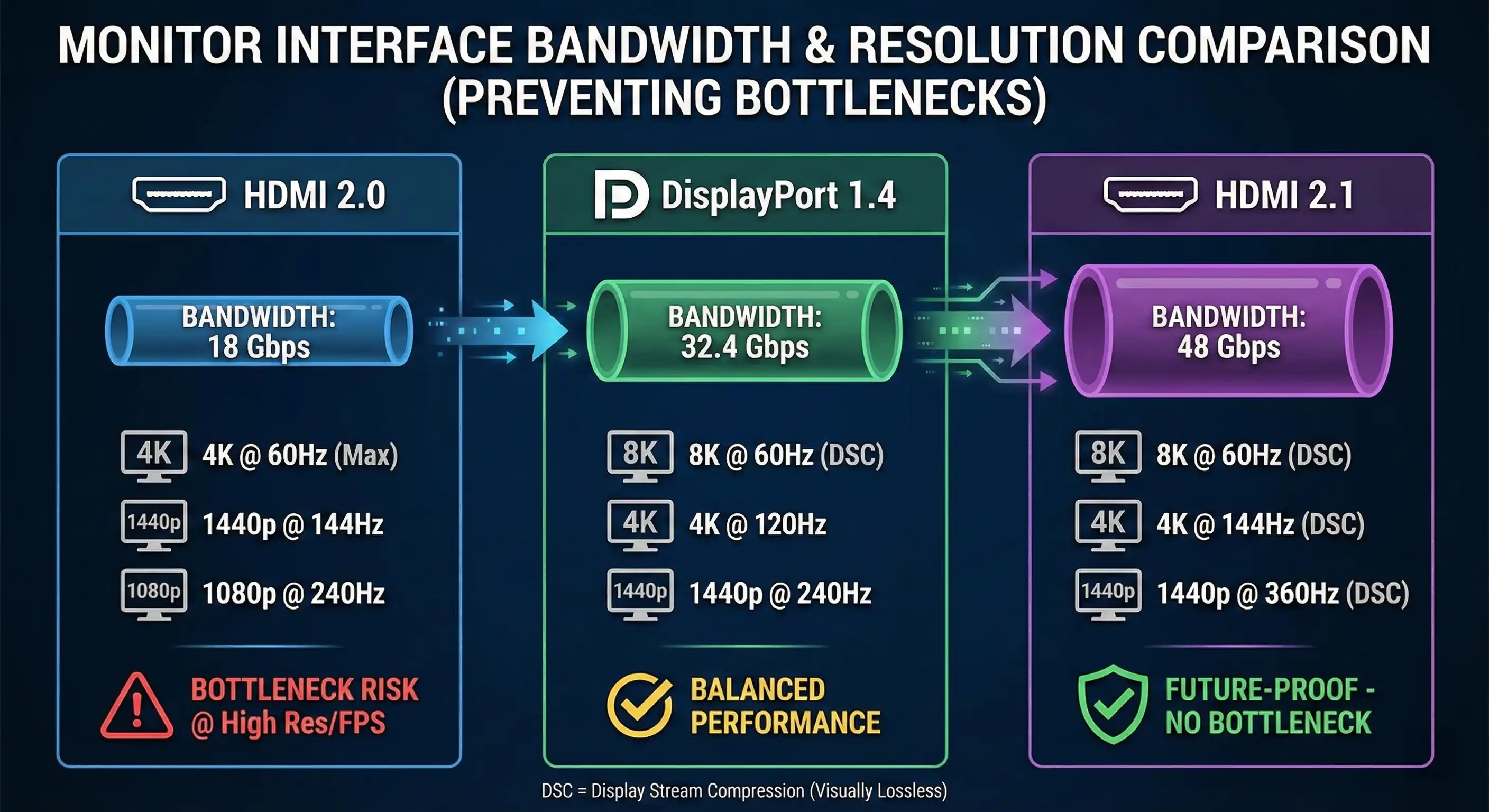
Your cable might be the source of your monitor bottleneck. Bandwidth matters immensely.
-
HDMI 2.0: Capped at 18 Gbps. Good luck getting 4K past 60Hz.
-
DisplayPort 1.4: 32.4 Gbps. You need this for 1440p at high refresh rates.
-
HDMI 2.1: The heavy hitter at 48 Gbps. Required for 4K 144Hz+.
Pro Tip: If you bought a 144Hz monitor but Windows only lets you select 60Hz, you are likely using the cheap HDMI cable that came in the box. Switch to a DisplayPort 1.4 or HDMI 2.1 cable immediately to clear the bandwidth bottleneck.
When to Upgrade Your Monitor
If you have done all the tweaks and our BottleneckChecker still says you are wasting >30% of your GPU power, it is time to upgrade to fix the monitor bottleneck.
For competitive gamers, refresh rate is king. Look for 1080p or 1440p panels running at 240Hz+. Modern Fast-IPS panels are great here.
For visual immersion? Go OLED. Pixel response times are basically instant (0.03ms). It wipes the floor with even the best IPS panels when it comes to motion blur, eliminating the response time aspect of a monitor bottleneck.
Special Scenarios: Dual Monitors & Laptops
Does a Second Monitor Cause Lag?
There is a myth that a second monitor kills performance. In reality? It depends on Windows.
Ideally, the Windows Desktop Window Manager (DWM) handles everything fine. But historically, mixing a 144Hz main screen with a 60Hz secondary screen caused stuttering because DWM struggled to sync them.
Microsoft largely fixed this in Windows 10 (2004 Update) and Windows 11. If you still feel a monitor bottleneck or lag, try matching multiples. Set your main screen to 120Hz if your secondary is 60Hz. Or, dig into the registry and disable MPO (Multi-Plane Overlay)—a known fix for stubborn stuttering.
Laptop Gaming with External Monitors
If you game on a laptop, plugging in an external monitor can actually boost your FPS.
Here is why: On many laptops, the powerful dedicated GPU (dGPU) has to pipe video through the weaker integrated graphics (iGPU) to reach the built-in screen. This adds latency, creating an "Optimus Bottleneck."
Most laptop HDMI or DisplayPorts connect directly to the dGPU. By using an external monitor, you bypass the iGPU entirely. Modern laptops with a MUX switch solve this internally, but for older machines, an external screen can give you a 10-15% free performance gain and bypass the internal monitor bottleneck.
Conclusion
Your monitor is the lens you view your PC's power through. Ignoring it is like buying a 4K movie and watching it on a fuzzy CRT TV. A monitor bottleneck isn't just about wasted money; it is about losing competitive fights you should have won.
Don't let your display hold back your rig. Check your cables. Turn on Reflex. Make sure Windows is actually set to the right refresh rate to avoid a monitor bottleneck.
Still unsure if your screen is the problem?
Stop guessing. Use our free BottleneckChecker Tool right now. Find out exactly how much performance you might be leaving on the table due to a hidden monitor bottleneck.
Frequently Asked Questions
What is considered good input lag to avoid a monitor bottleneck?
For casual gaming, input lag under 40ms is acceptable. However, to avoid a competitive monitor bottleneck in shooters like CS2 or Valorant, you want 10ms or lower. Most elite gaming monitors today hit roughly 4-8ms input lag.
Does 4K resolution cause more monitor bottlenecking than 1080p?
Actually, the opposite. 4K puts a massive load on the GPU, making the GPU the bottleneck (which is generally preferred). At 1080p, the GPU renders frames so fast that the monitor often cannot keep up, leading to wasted frames and a classic monitor bottleneck.
Can a 60Hz monitor limit my RTX 3060/4060 performance?
Yes, big time. An RTX 3060 or 4060 can easily hit 100+ FPS in most 1080p games. If you use a 60Hz monitor, you literally cannot see almost half the frames your card produces, creating a severe refresh rate monitor bottleneck.
How do I check if my HDMI cable is causing a monitor bottleneck?
Check your Windows Display Settings. If the option for your max refresh rate (like 144Hz) is missing, the cable is likely the bottleneck. Standard HDMI 2.0 cables often can't handle high refresh rates at high resolutions. You likely need an HDMI 2.1 or DisplayPort 1.4 cable.
Should I cap FPS to fix a monitor bottleneck?
For the smoothest image without tearing, yes, capping FPS at your refresh rate (e.g., 144 FPS for 144Hz) helps. However, for the lowest input lag, competitive gamers usually leave FPS uncapped to ensure the most recent frame is ready, even if it causes tearing.