Online PC Bottleneck Calculator
Easily check for CPU and GPU bottlenecks in your PC setup with our accurate bottleneck calculator. Enter your system specifications below to see how well your components work together. Our PC bottleneck checker will help you identify hardware mismatches, so you can optimize your build. Make sure your system runs smoothly and get suggestions for upgrading your configuration.


Select your hardware components, then run the bottleneck calculator to generate your customized hardware performance summary and bottleneck percentage.
Why Your PC Lags: Use Our
Bottleneck Calculator
A bottleneck occurs when the performance of a system is severely limited by a single component. As you will see when using our CPU and GPU bottleneck calculator, in gaming PCs, this is almost always a mismatch between your CPU and GPU.
Your processor handles game logic, physics, AI, and tells the GPU what to draw. If the CPU is too slow, it can't feed instructions fast enough. The GPU sits idle, waiting for work. This results in stuttering and low frame rates, regardless of how powerful your graphics card is.
Your graphics card renders the visual frames based on the CPU's instructions. If the GPU is too slow, the CPU finishes its calculations quickly and has to wait. While this is the "ideal" bottleneck for gaming (as you get maximum visual quality), a severe GPU bottleneck means you're not getting the FPS your CPU is capable of.
Why Analyze Your System?
Stop Guessing
Don't rely on generic advice. Our bottleneck calculator uses a massive database of real-world benchmarks to analyze the exact interaction between your specific CPU and GPU models across different resolutions.
Save Money
Avoid buying a $1000 GPU if your current CPU can only utilize 60% of its power.
Optimize Settings
Discover whether you should increase resolution to utilize your GPU, or lower settings to help your CPU.
Data-Driven Upgrades
Get clear, percentage-based metrics from our bottleneck calculator that tell you exactly which component is holding you back, making your next upgrade path obvious and mathematically sound.
The Resolution Factor in Bottleneck Tests
Bottlenecks are not static. The resolution you play at completely changes the dynamic between your CPU and GPU. A reliable bottleneck calculator must account for whether you are doing 1080p gaming or pushing 4K pixels.
CPU Bound
At 1080p, modern GPUs render frames incredibly fast. The burden shifts entirely to the CPU, which struggles to prepare game logic and physics fast enough to keep up with the GPU.
- High frame rates (144+ FPS)
- CPU usage is very high
- GPU usage often drops below 90%
GPU Bound
At 4K, the GPU has to render 4 times as many pixels as 1080p. It takes much longer to draw each frame. The CPU easily keeps up and spends time waiting for the GPU to finish.
- Lower frame rates (60-100 FPS)
- GPU usage is pinned at 99-100%
- CPU usage is generally low
Decoding Hardware Telemetry: Reading Your System's Vital Signs
Instead of guessing what's holding your frame rates back, you can simply read the story your hardware is telling you. By monitoring the real-time utilization of your processor and graphics card, you can instantly diagnose performance issues, identify exact upgrade paths, and understand exactly how a specific game engine is treating your rig.
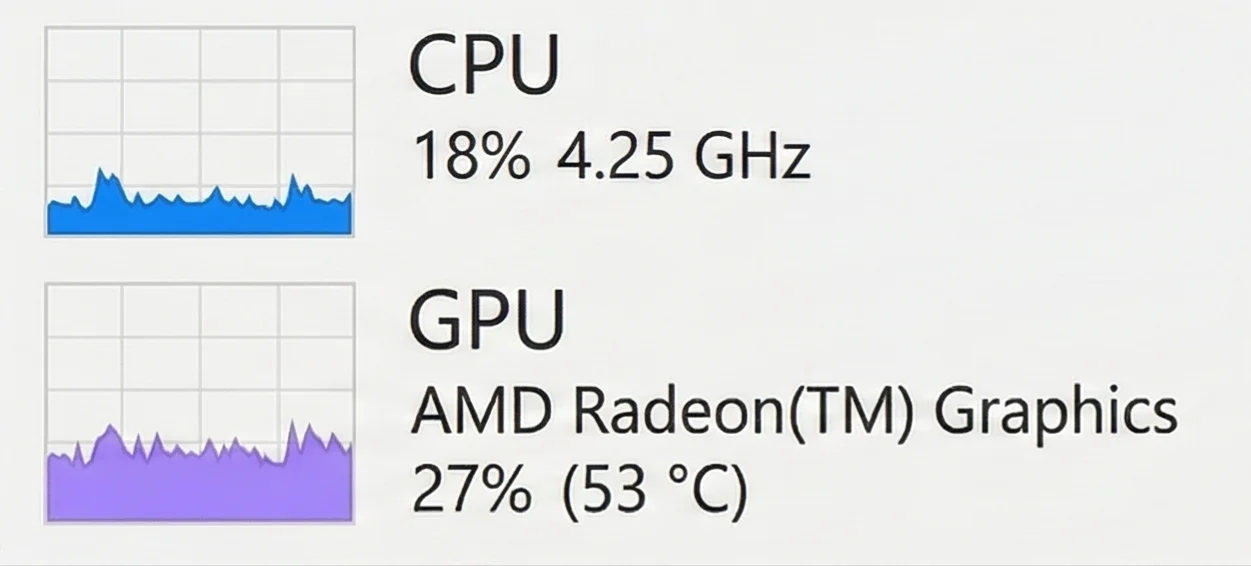
Low CPU and GPU usage showing untapped performance
UNTAPPED POTENTIAL / ARTIFICIAL LIMITS
Think of this as your PC cruising down the highway in overdrive. Neither component is breaking a sweat. You'll typically see this behavior when playing older, less demanding titles, running lightweight esports games, or if you've intentionally capped your frame rates (like turning on V-Sync). Your hardware has massive amounts of untapped potential here, meaning you could easily stream, record, or crank up the resolution without noticing a performance hit.
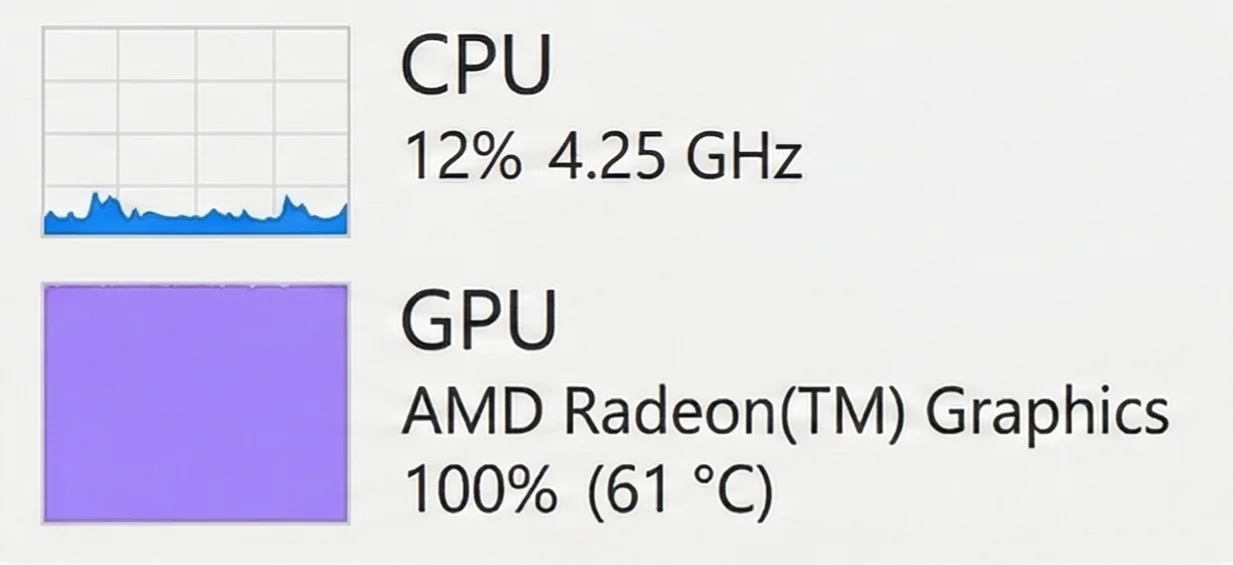
Ideal GPU bottleneck with 100% graphics card usage
THE IDEAL GRAPHICS BOTTLENECK
This is the holy grail for PC gamers. Your graphics card is giving you absolutely everything it has (100% effort), while your processor is comfortably feeding it instructions without breaking a sweat. It means you are extracting every single drop of visual fidelity your GPU can provide. If you want more frames in this scenario, your only options are to dial back the in-game graphics settings or invest in a more powerful graphics card.
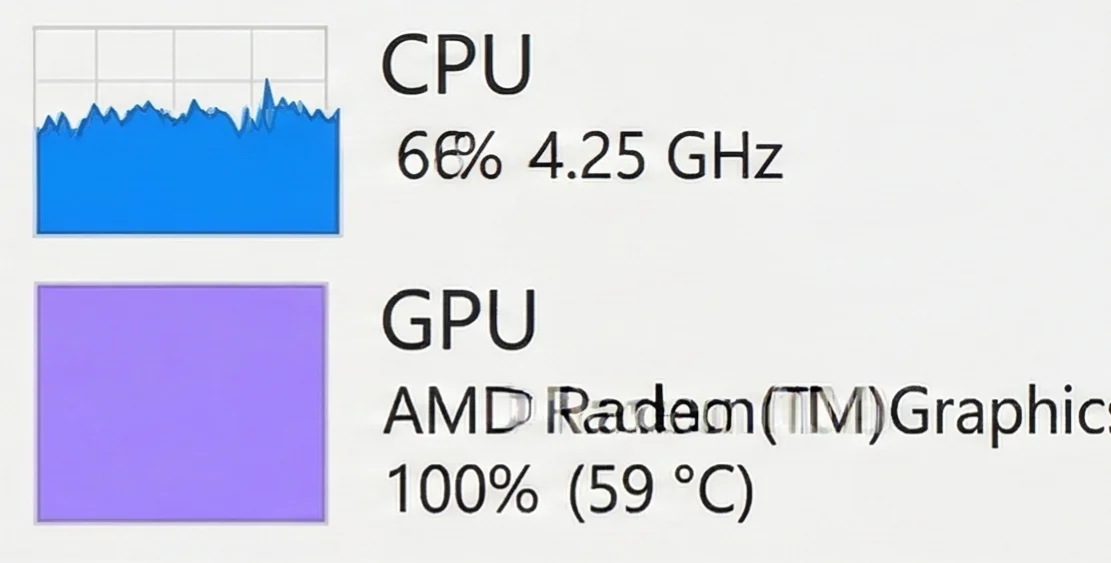
Balanced CPU and GPU under heavy workload
HEAVY BUT BALANCED WORKLOAD
This signature points to a beautifully balanced machine that is being pushed to its absolute limits. Your graphics card is maxed out, delivering peak visual performance, while your processor is working incredibly hard to keep the data flowing. While technically the GPU is the bottleneck, the CPU is right on its heels. Upgrading the GPU alone here might immediately expose a CPU limitation.
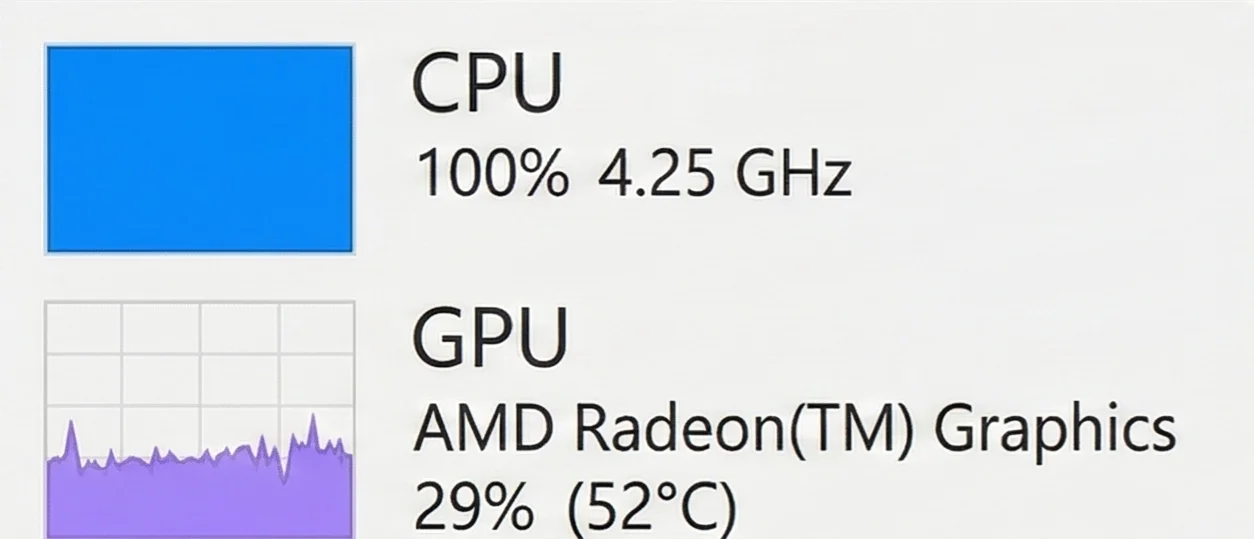
Severe CPU bottleneck with maxed processor
CRITICAL PROCESSOR BOTTLENECK
This is the classic red flag of a severe processor bottleneck. Your CPU is gasping for air at 100% utilization, desperately trying to calculate game logic and physics. Meanwhile, your expensive graphics card is essentially taking a nap, waiting around for instructions that aren't arriving fast enough. To unleash the trapped potential of your GPU and eliminate stuttering, a processor upgrade is absolutely necessary.
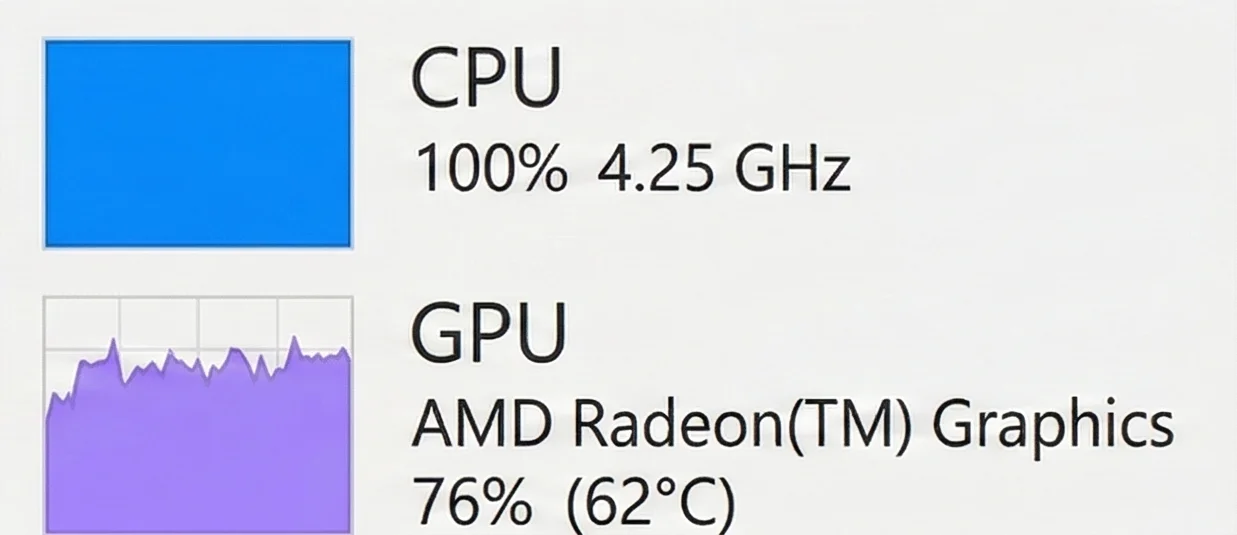
Mild CPU bottleneck limiting GPU performance
SLIGHT PROCESSOR CEILING
You're walking a very fine line here. The processor has hit its absolute ceiling and can't give you another frame, which is preventing your graphics card from reaching that coveted 99-100% utilization mark. It's a minor bottleneck, but it means your CPU is the weak link in the chain. Closing background applications like Discord or web browsers might just be enough to free up the resources your GPU needs.
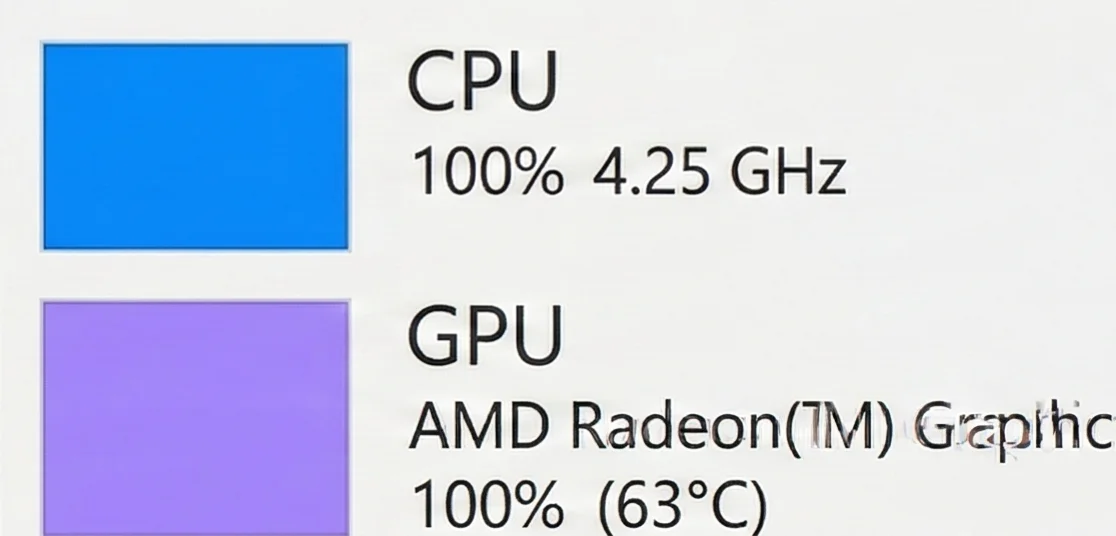
CPU and GPU both at maximum utilization
TOTAL SYSTEM REDLINE
Total system saturation. Your rig is firing on all cylinders, with both the brain and the brawn completely maxed out. You'll often see this in incredibly demanding modern AAA titles, intense rendering workloads, or poorly optimized software. While it means you're getting 100% of what you paid for, running at this redline generates massive amounts of heat. Ensure your case airflow and cooling solutions are up to the task.
Manual Detection Methods
Task Manager Method
Press Ctrl+Shift+Esc. If CPU shows 90-100% across all cores while GPU shows 40-60%, you have a CPU bottleneck. If GPU is 95-100% and CPU is 30-60%, it's a GPU bottleneck.
Resolution Scaling Test
Lower your game resolution by one step (e.g., 1440p to 1080p). If FPS increases by 30%+, your GPU was the bottleneck. If FPS increases by less than 10%, your CPU is the bottleneck.
Monitoring Software
Use tools like MSI Afterburner or HWMonitor for real-time on-screen analysis. They track per-core CPU usage, GPU utilization, and identify thermal throttling instantly.
Frequently Asked Questions
What exactly is a PC bottleneck, and why does it hurt gaming performance?
What is the difference between a CPU bottleneck and a GPU bottleneck?
Which is worse for gaming: a CPU bottleneck or a GPU bottleneck?
Is bottlenecking inevitable in every PC build?
How accurate are online bottleneck calculators?
How do I interpret my bottleneck calculator results?
Is a 10% or 15% bottleneck bad for gaming performance?
What resolution should I select in a bottleneck calculator — 1080p, 1440p, or 4K?
Why do I have a bottleneck at 1080p but not at 1440p or 4K?
Is it normal to have different bottlenecks in different games?
How do I check for a bottleneck while actually playing a game?
How do I fix a CPU bottleneck without buying a new processor?
Is Your CPU Bottlenecking Your GPU?
Find Out Now.
Our free Bottleneck Calculator gives you a clear verdict in under 30 seconds. So you upgrade the right component, not the wrong one.